Category: B2B Marketing

  • Get More Leads with Google Maps: Micro-Zones for Complete Coverage

    Get More Leads with Google Maps: Micro-Zones for Complete Coverage

    Why Micro-Zones Matter

    Searching Google Maps for “New York dentists” or “Chicago gyms” looks simple – but it leaves leads behind. Cities aren’t one market. They’re made up of ZIP codes, neighborhoods, and boroughs, each with its own business density and customer demand.

    If you only search the city as a whole, you miss entire pockets of opportunity. Breaking campaigns into micro-zones makes sure every corner is covered — and that’s how you maximize leads.

    The Old Way vs. the Smart Way

    • Old way: Manually running separate searches for every ZIP code or neighborhood, exporting results one by one, and trying to stitch them together.
    • Smart way with BizLeadInfo: Our platform automatically divides map area into micro-zones, runs the searches, and drills down when needed – no manual work required.

    How It Works in Practice

    1. Define your area on a map – Select New York, Chicago, Miami, or any other area and select the desired coverage area.
    2. Automatic segmentation – BizLeadInfo breaks it into small Zones.
    3. Zone-by-zone extraction – Every micro-zone is searched, and results are tagged automatically.
    4. Balanced insights – You instantly see which areas are saturated and which are under-served.
    5. Tailored outreach – Use insights per zone to sharpen your campaigns:
      • Crowded areas → compete with stronger SEO and ads.
      • Growth areas → position clients as first movers.
      • Small pockets → personalize with hyper-local targeting.

    Real Example

    A Chicago agency targeting law firms used BizLeadInfo to split the city into 10 micro-zones automatically. The platform uncovered three zones with very few competing firms. With zone-specific outreach, engagement was 22% higher than their old citywide campaigns.

    Why Agencies Choose BizLeadInfo

    • Automatic micro-zoning – No need to run endless manual Google Maps searches.
    • Smarter targeting – Outreach strategies tailored by density and competition.
    • More leads, less effort – Scale results without scaling workload.

    Final Takeaway

    Google Maps is a goldmine for leads – if you know how to segment it. BizLeadInfo does the heavy lifting by breaking areas into micro-zones automatically and ensuring you never miss a potential lead.

    The result? More leads per area. Complete area coverage. Smarter campaigns.
    Try BizleadInfo for free

  • Finding Public Business Emails from Google Maps Data

    Finding Public Business Emails from Google Maps Data

    The Challenge

    Google Maps provides phone numbers and websites — but rarely email addresses. For agencies running outreach campaigns, emails are essential. Here’s how to bridge the gap legally and efficiently.


    Step 1: Extract Business Websites

    Most Maps listings include a website field. Export this along with the business name.


    Step 2: Crawl Websites for Contact Info

    Use crawlers or scraping tools to find:

    • “Contact Us” pages
    • “About” pages
    • Footer email addresses
    • Schema markup (often includes emails)

    Step 3: Use Built-In Email Discovery

    Instead of relying on third-party services, BizLeadInfo has email discovery built directly into the platform. This services connect domain names to verified business emails.


    Step 4: Verify Emails (Integrated in CRM / Email Platforms)

    Email verification doesn’t have to be a separate step. Many CRMs and email platforms, such as Mailster for WordPress, handle verification automatically.
    When this feature is enabled, invalid emails are filtered out during import or campaign setup — ensuring only verified addresses are used, without requiring a manual verification process.


    Step 5: Respect Privacy & Compliance

    • Always use publicly available business emails.
    • Avoid personal Gmail/Yahoo accounts.
    • Honor GDPR/CCPA regulations.

    Case Example

    A New York agency exported 895 accountant businesses:

    • Found websites for 577.
    • Extracted 323 emails from sites.
    • Verified list at 98% deliverability.

    Conclusion

    Google Maps alone won’t hand you emails — but paired with website scraping and enrichment tools, you can build clean, compliant business email lists that power campaigns.

    Try BizLeadInfo for Free

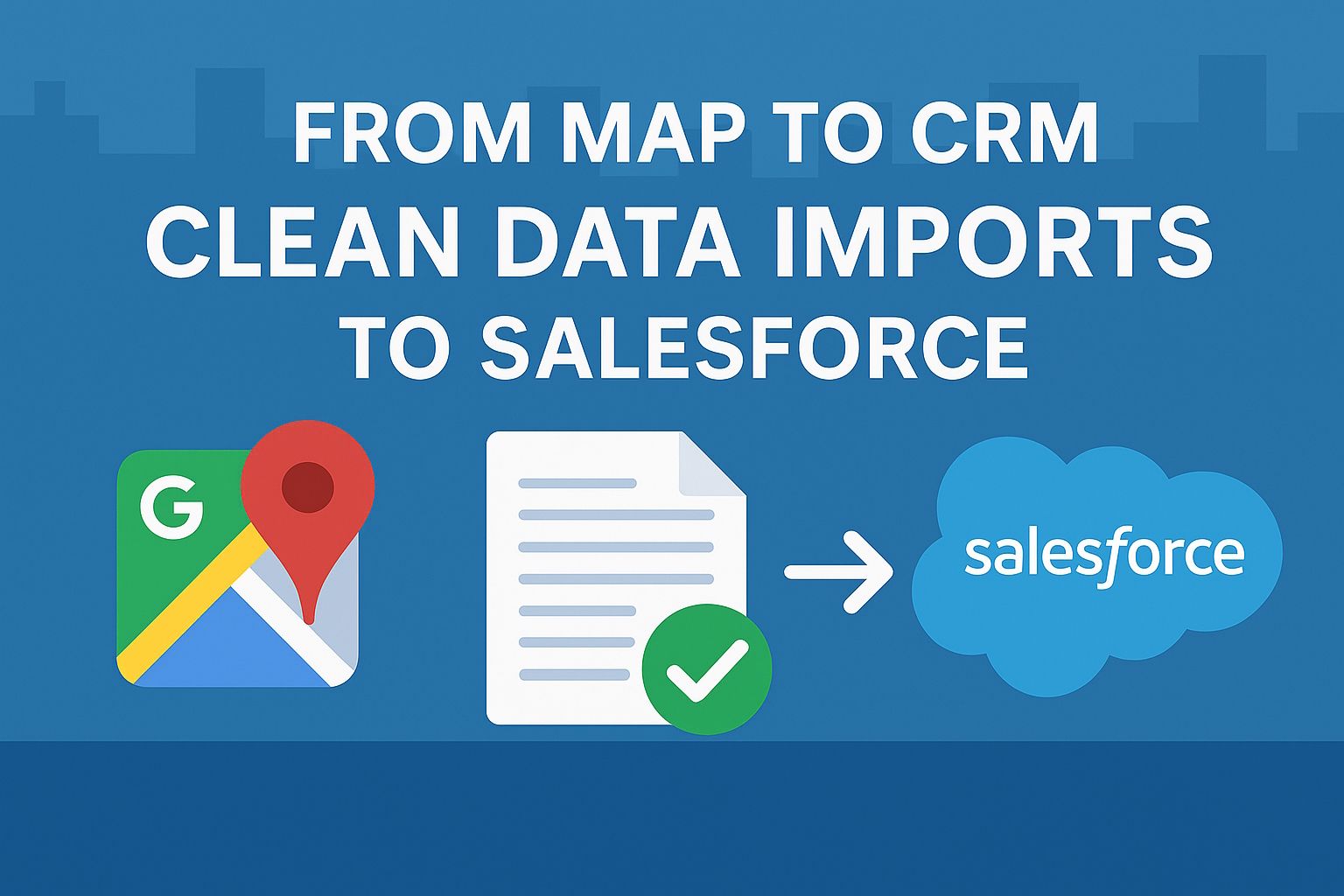
  • From Map to CRM: Clean Data Imports to Salesforce

    From Map to CRM: Clean Data Imports to Salesforce

    Why This Matters

    Pulling business leads from Google Maps is only step one. The real challenge? Getting that data into Salesforce without messy duplicates, broken fields, or missing context.


    Step 1: Export Data From Maps

    • Use a professional extractor to pull name, address, phone, category.
    • Save as TSV or CSV (best formats for Salesforce).

    Step 2: Prepare the File

    Before uploading:

    • Normalize phone numbers → Salesforce accepts E.164 format (+1-305-123-4567).
    • Split addresses → Street, City, State, ZIP, Country.
    • Check categories → Map them to Salesforce custom fields.

    Step 3: Import Into Salesforce

    • Navigate: Setup → Data Management → Data Import Wizard.
    • Choose Leads or Accounts.
    • Upload your file.
    • Map columns to Salesforce fields (e.g., “Business Name” → “Company”).

    Step 4: Avoid Common Errors

    • Duplicates: Enable “Prevent Duplicate Records” in setup.
    • Missing ZIP codes: Salesforce rejects incomplete addresses.
    • UTF-8 characters: Ensure special symbols are encoded properly.

    Step 5: Automate

    • Use Zapier or custom API integrations to skip manual imports.
    • Schedule weekly syncs for always-fresh data.

    Case Example

    A Miami agency exported 500 dentists from Maps:

    • Cleaned file in Excel (15 minutes).
    • Imported to Salesforce without errors.
    • Built an outreach sequence the same day.

    Conclusion

    From Google Maps to Salesforce, the difference between a usable CRM and a messy one is clean imports. Prep your files properly and you’ll save hours of manual cleanup later.

    BizLeadInfo – Ready clean lists

    BizLeadInfo list download a clean lead list in seconds. it s fast and ready to upload to your CRM.

    Try a free demo today

  • How Agencies Build Local Lead Lists in Under 5 Minutes

    How Agencies Build Local Lead Lists in Under 5 Minutes

    The Speed Imperative

    Time kills deals. For agencies and sales reps, the ability to generate a qualified local lead list in minutes is a competitive advantage. Here’s how top agencies are doing it.


    Step 1: Define Target Segments

    • Vertical: Law firms, restaurants, gyms, salons.
    • Location: By city, ZIP code, or neighborhood.

    Step 2: Use Google Maps Efficiently

    • Search with precise keywords (“Italian restaurants in Chicago”).
    • Zoom into micro-zones for better accuracy.

    Step 3: Export & Format Data

    Tools now allow you to:

    • Pull 500+ businesses instantly.
    • Export into Excel/TSV.
    • Clean phone numbers and addresses.

    Step 4: Enrich & Filter

    • Add public e-mail addresses automatically.
    • Filter by: Category, Zip, Website, e-mail, phone, review score, number of reviews, etc.

    Real Agency Workflow

    📍 Case Study: A digital marketing agency in Miami:

    • Area: Miami metropolitan
    • Niche (search term): “Dentists”.
    • 738 results exported in 2 minutes.
    • Uploaded into HubSpot → sequences running same day.

    Pro Tips

    • Work in micro-zones (downtown, suburbs).
    • Standardize categories (“Dentist” vs “Orthodontist”).
    • Run regular searches — businesses open and close weekly.

    Conclusion

    Building local lead lists no longer takes hours of manual effort. With the right tools, agencies can go from search to outreach in under 5 minutes, winning more clients with less friction.

    Get fast leads. Try it for free.

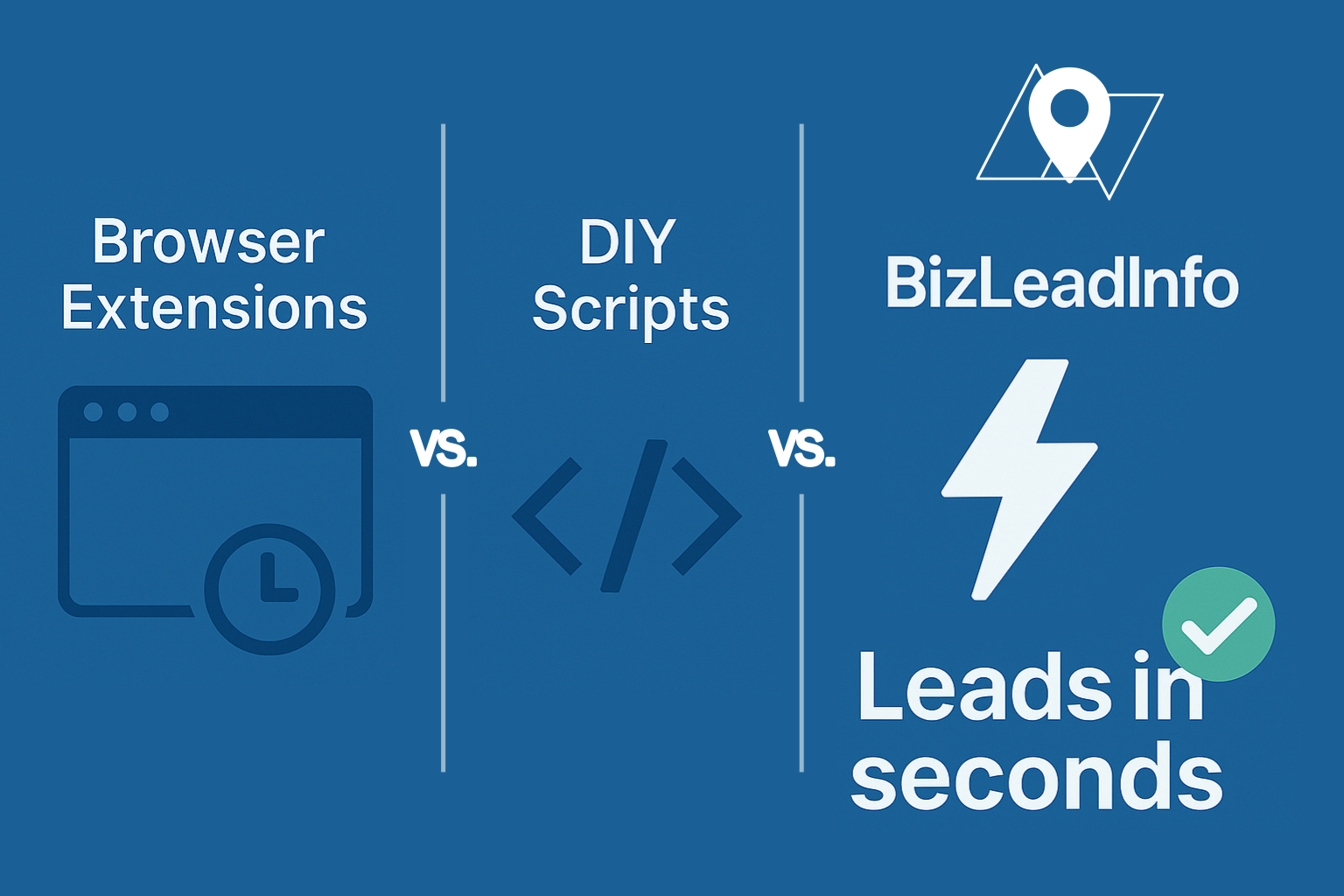
  • Google Maps Extractor vs. Browser Extensions vs. BizLeadInfo: Which Tool Should You Use?

    Google Maps Extractor vs. Browser Extensions vs. BizLeadInfo: Which Tool Should You Use?


    When extracting business leads from Google Maps, you typically choose between three approaches:

    1. Browser Extensions — lightweight scrapers that run in your browser.
    2. Open-Source / DIY Scripts — code-based tools you host and maintain yourself.
    3. Dedicated Cloud Tools — managed platforms like BizLeadInfo built for speed, scale, and reliability.

    Browser Extensions

    Pros:

    • Setup (install as Chrome/Edge extension).
    • User interaction required – Point-and-click to extract data.
    • Supports multiple export formats.
    • Bulk keyword extraction and “update when map moves” options.

    Cons:

    • Require user time to interact with the extraction process.
    • Dependent on your browser and machine resources.
    • Risk of breaking with Google Maps updates.
    • Limited automation.
    • Missing data due to extractor zoom limitation.
    • Subscription-based – you might pay for more than what you get.

    Best for: users who want to interact with the scraper and are ok with spending time to guide the extraction process.


    Open-Source Scripts & DIY Tools

    Pros:

    • Free and customizable.
    • Can customize the capture data points (name, phone, coordinates, reviews, etc.).
    • Flexible outputs.

    Cons:

    • Requires time to learn, set up and configure.
    • Requires coding and maintenance.
    • High risk of breakage when Google changes layouts.
    • Time-intensive for non-developers.
    • Legal risks (always check ToS).

    Best for: developers, hobbyists, or one-off projects.


    BizLeadInfo: A Polished Cloud Solution

    Why BizLeadInfo stands out:

    • Fully automated: Just select and area and target business category.
    • Zero setup: 100% cloud-based, no installs and no interaction during the extraction process.
    • Smart area segmentation: automatically splits regions into micro-zones and runs in parallel.
    • Fast runs: thousands of leads in seconds.
    • Clean data: names, categories, addresses, phones, websites, ratings, reviews, and publicly available emails.
    • Flexible viewing & export: cards, tables, maps, and ready-to-use .xls files.
    • Real-time progress: live tracking with email notifications.
    • Scalable: Extract multiple lists in parallel and save time.

    Best for: agencies, B2B marketers, and sales teams scaling campaigns.


    Comparison Table

    FeatureBrowser ExtensionsOpen-Source ScriptsBizLeadInfo
    SetupRequire installManual codingCloud, instant
    ScalabilityLaw, 1 job at a timeInfrastructure dependedHigh (parallel)
    Data CleaningLimitedDeveloper’s effortClean + structured
    Export OptionsCSV, Excel, JSONCSV, JSON, customXLS, TSV, Card view, map view
    CostSubscriptionDevelopment and time costPay-as-you-go
    AutomationMinimalCustom scripts100%
    Ideal ForUsers who dont mins interaction and have lots of timeDevelopers, codersAgencies, high-volume sales, B2B marketers, Market research

    Final Word

    • Browser extensions are fine for light use or for users who have time to interact with the extension and dont mind missing some data.
    • Open-source tools are flexible but require coding time and upkeep.
    • BizLeadInfo delivers a turnkey experience: scalable, fast, and clean.

    Try BizLeadInfo for Free